
The current version of the Sambandh Database and Map focuses on India’s infrastructure projects with Bhutan.
This guide provides information on how to navigate the map.
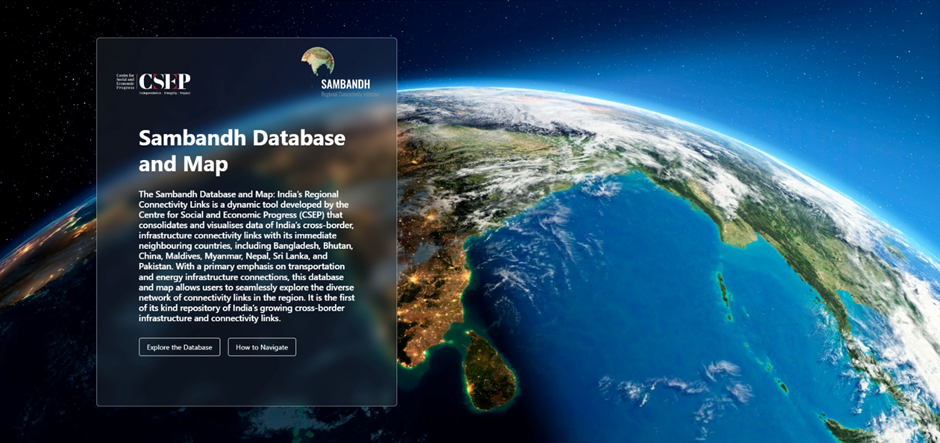
1. The landing page provides an overview of the Database and Map. To use the map, click on ‘Explore the Database’.
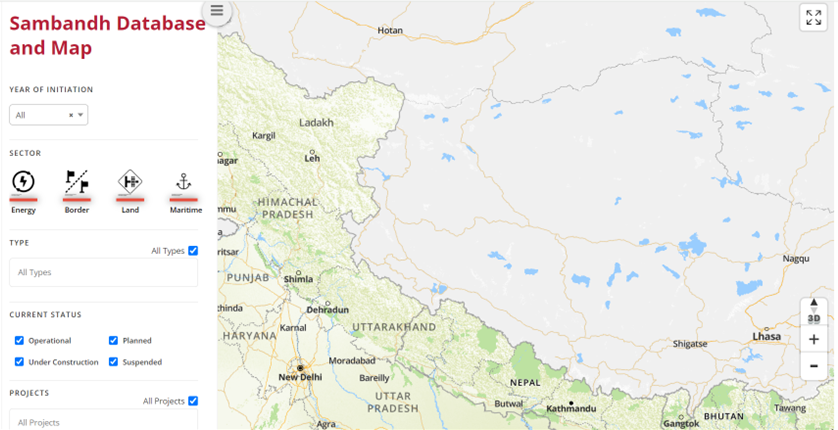
2.The platform will load with a Filter panel on the left side and the Map on the right side. The default mode will not show any infrastructure links. Please use the filter panel to select the infrastructure links, and click on ‘Apply.’
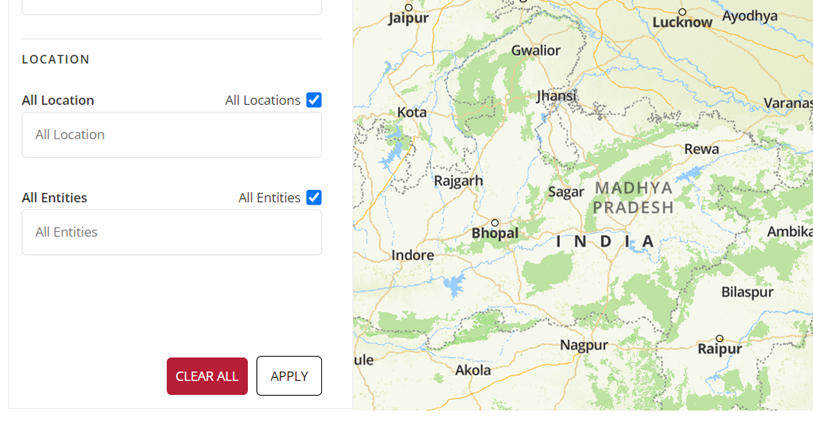
The “Apply” option that needs to be selected in order to confirm what results you wish to see, is visible at the bottom of the panel on the left hand side.
3. Filter panel
- Year of initiation: This provides information on the year in which an infrastructure link was initiated/operationalised. The default mode loads on ‘All’ years covered in the database. A user can choose from the options in the drop down panel.
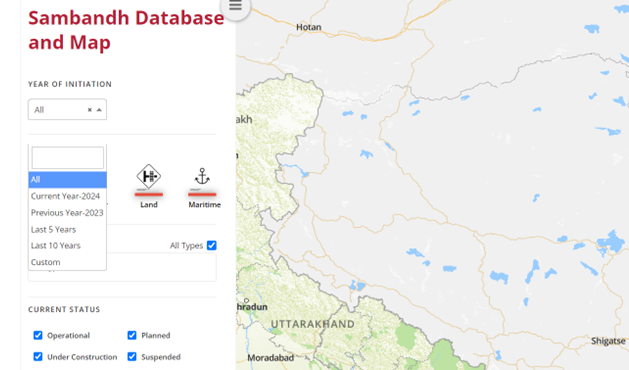
In case you want to look at projects initiated in specific years, the ‘Custom’ option in the drop-down panel can be adjusted to specify the year range.
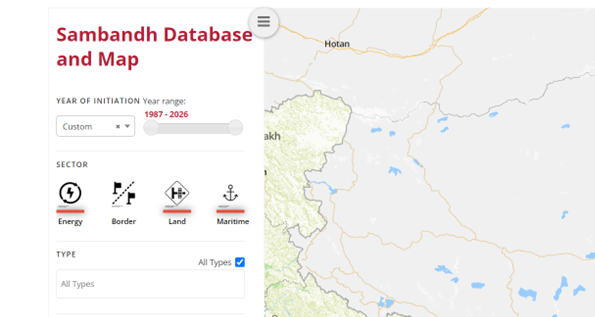
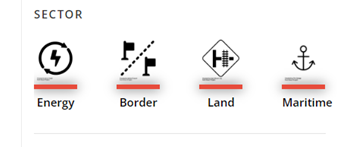
- Sector: Four physical infrastructure sectors are covered in this database – Energy, Border, Land and Maritime. The default mode covers all four sectors.
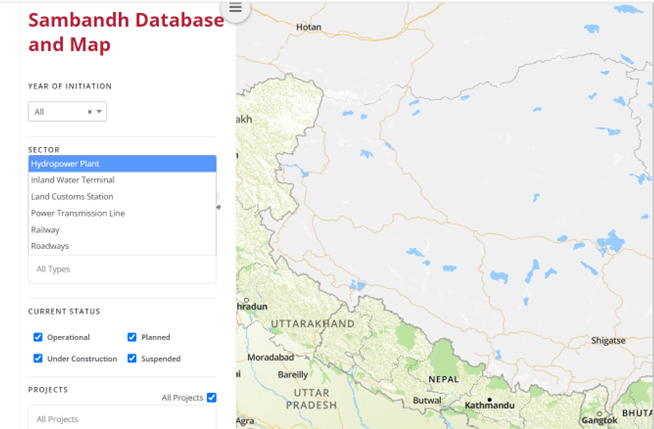
- Type: Six categories of projects are covered, which include – Hydropower plants, power transmission lines, land customs stations, roadways, railways and inland water terminals. The default setting selects all projects. To view specific project(s), select from the drop-down menu.
- Current Status: In order to see the project’s status, you can choose from the following options – Operational, Planned, Under Construction, and Suspended. The default option is that all four are selected. You can deselect the status you do not want to view.
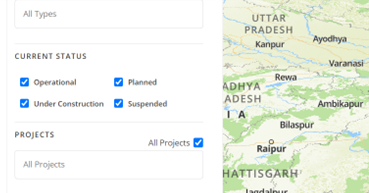
- Projects: You can specifically opt to view which project you wish to locate on the map. The default setting shows all projects, but you can change that by picking a specific one from the drop-down menu.
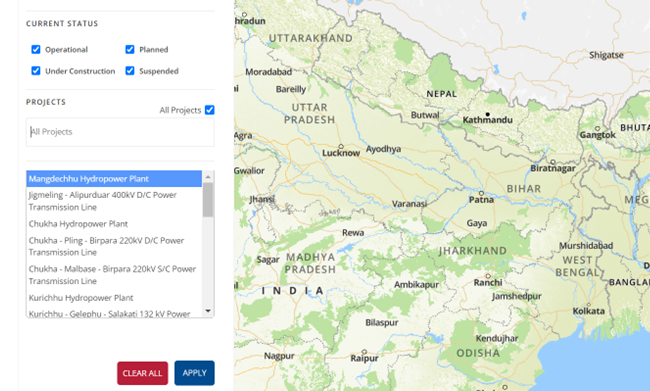
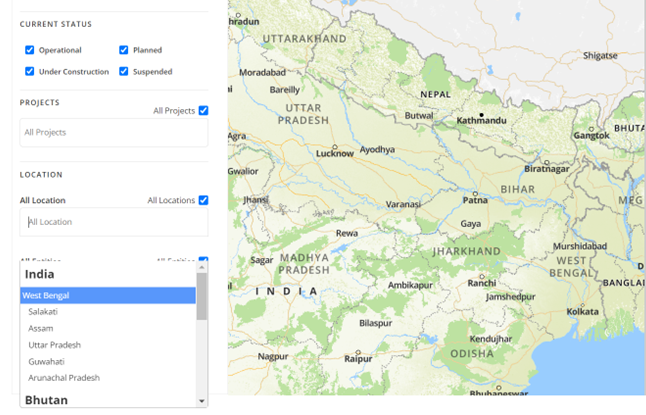
- Location: The Database and Map also provides the option of viewing specific location-based projects. Currently, the map shows locations in India and in Bhutan. These are clearly marked in the drop down option. The default shows projects in all relevant locations, but you can select any location for specific results.
- Entity: This allows you to select the entity responsible for construction of different projects. This includes both private and public sector entities, and provides a range of options you can choose from. The default setting shows all entities.
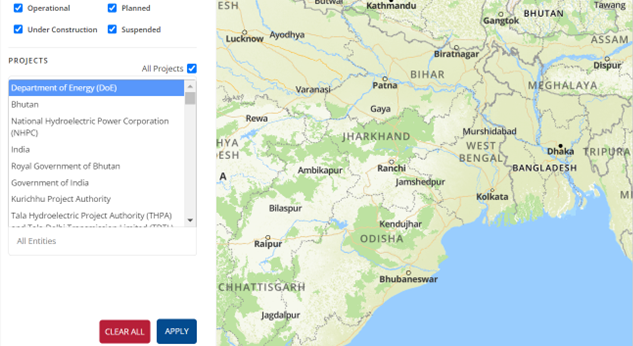
4. Filter panel
In order to see the infrastructure projects, the dashboard on the left allows you to precisely customise your preferences and results. For visual representations of the projects and their locations, please put specific inputs regarding the year of initiation, sector, type of project, status, location and responsible entity.
- Each pin on the map represents a project. By clicking on the pin, you can gain insight into the infrastructure, sector, type, year of initiation, current status and location, To view detailed information about the project, click on the “view details” option.
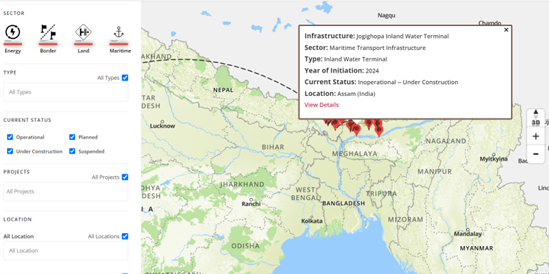
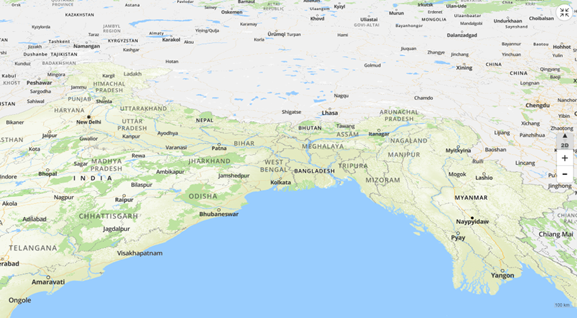
- In order to get a better estimation of distance, you can access the “3D” option at the right hand side of the map. You can also use the “+” and “-” buttons on the right to zoom in and out respectively. The dashed lines between pins show connections between different infrastructural links in India and Bhutan.
- To gain access to different sets of projects or information, you can select “clear all” at the bottom left of the screen, then set the appropriate inputs and click “Apply” again.
